
Wisanna for Word: User Guide
The Word Add-in brings legal AI directly into your drafting environment. Review contracts, redline documents, and draft clauses without switching windows.
In this guide:
1. Setting Context & Guidelines
Before analyzing a document, you must ground the AI in the facts of the deal using Context.
- Define Parties: Explicitly state who is who (e.g., "Client is the Service Provider").
- Set Objectives: "We want to limit liability to fees paid" or "ensure IP ownership stays with us."
- Legal Guidelines: Add specific guardrails (e.g., "Flag any non-standard indemnity").
2. Document Overview
Run this first on any new document. It provides an instant map of the agreement.
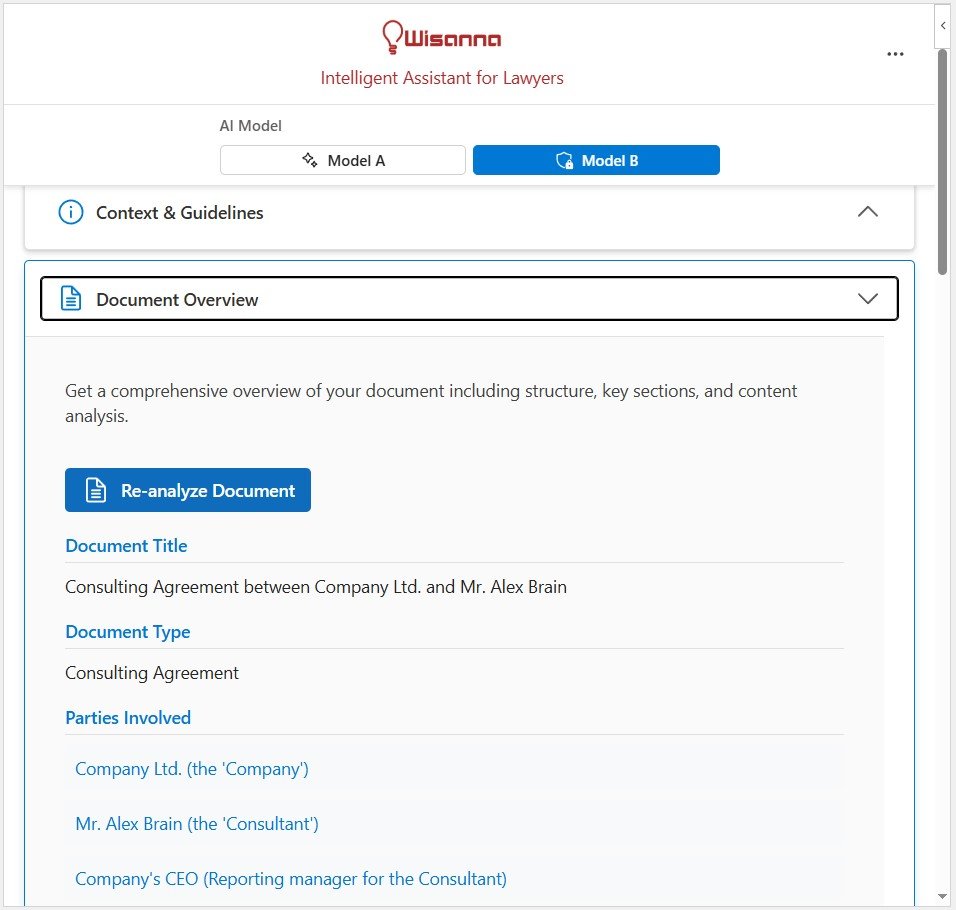
What it extracts:
- Summary: Executive summary of the deal.
- Key Points: Deadlines, payment terms, and renewal mechanics.
- Parties: Identifies all defined entities.
- Missing Items: Flags standard clauses that are absent (e.g., "No Force Majeure clause found").
3. Side Selection Strategy
Context matters. A "good" clause for a buyer is often a "bad" clause for a seller. Use the Side Selection toggle to tell Wisanna who you represent.
Your Client
Highlights risks to your position. Suggests aggressive edits to protect your interests.
Counterparty
Anticipates what the other side will object to. Useful for preparing negotiation responses.
Balanced
Aims for a fair, middle-ground standard. Good for initial drafts where you want speed over leverage.
4. Risk Review & Recommendations
The Review tab performs a deep scan of the document text.
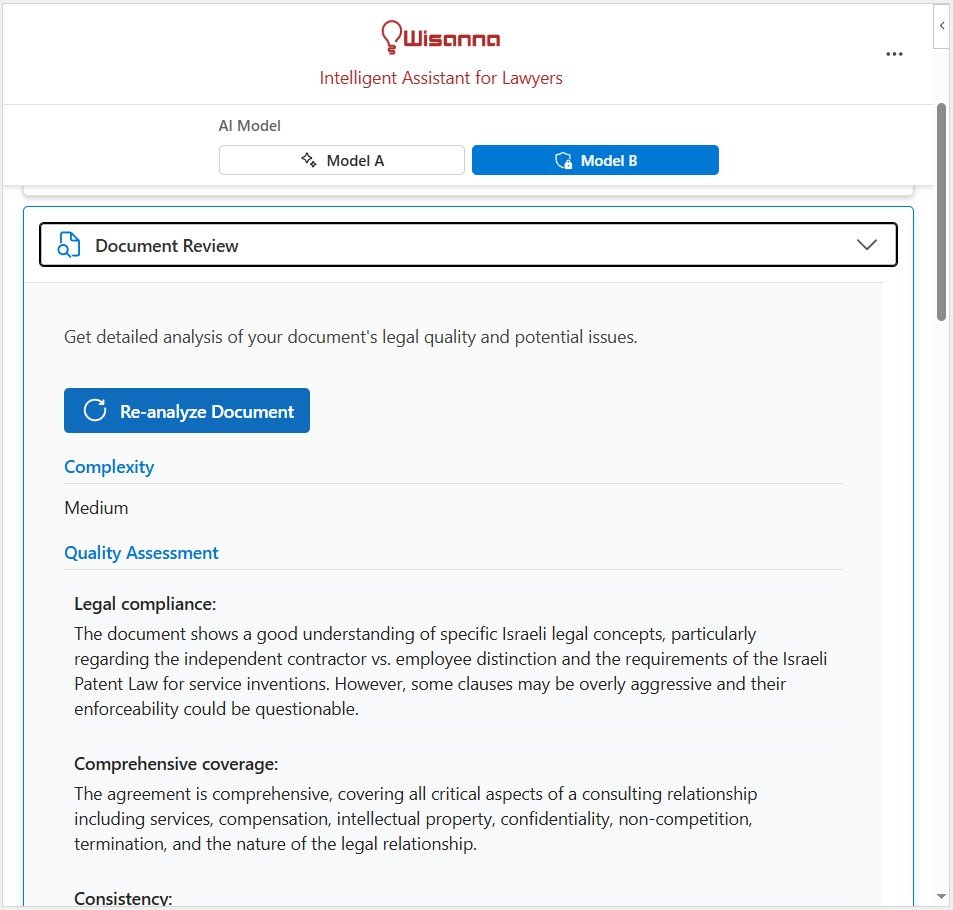
- Risk Matrix: Categorizes issues by severity.
- Rationale: Explains why a clause is problematic, often citing general legal principles.
- Recommendations: Suggests specific fixes (e.g., "Add a cure period of 30 days").
5. AI Amendments
Once a risk is identified, you don't have to draft the fix manually. Click "Propose Amendment" (or similar action) to generate a redline.
- Auto-Drafting: Wisanna generates new language based on your Context & Guidelines.
- Track Changes: Inserts the new text with Track Changes enabled, so you (and the counterparty) can see exactly what changed.
- Human Oversight: Always review the proposed language before accepting.
6. "Tell AI What to Change"
For custom instructions, use the "Tell AI" feature to direct specific edits. See more examples in the Prompt Library.